
2 · Dispatcher — scheduling, routing, the map
The dispatcher decides who does what, when, and in what order to drive. PLANA Field Service gives them three connected tools: the dispatch board, day routes with one-click optimisation, and a live map.
Dispatch board
Field Service ▸ Operations ▸ Dispatch Board is a timeline grouped into technician lanes, with each order shown as a time bar coloured by its stage.
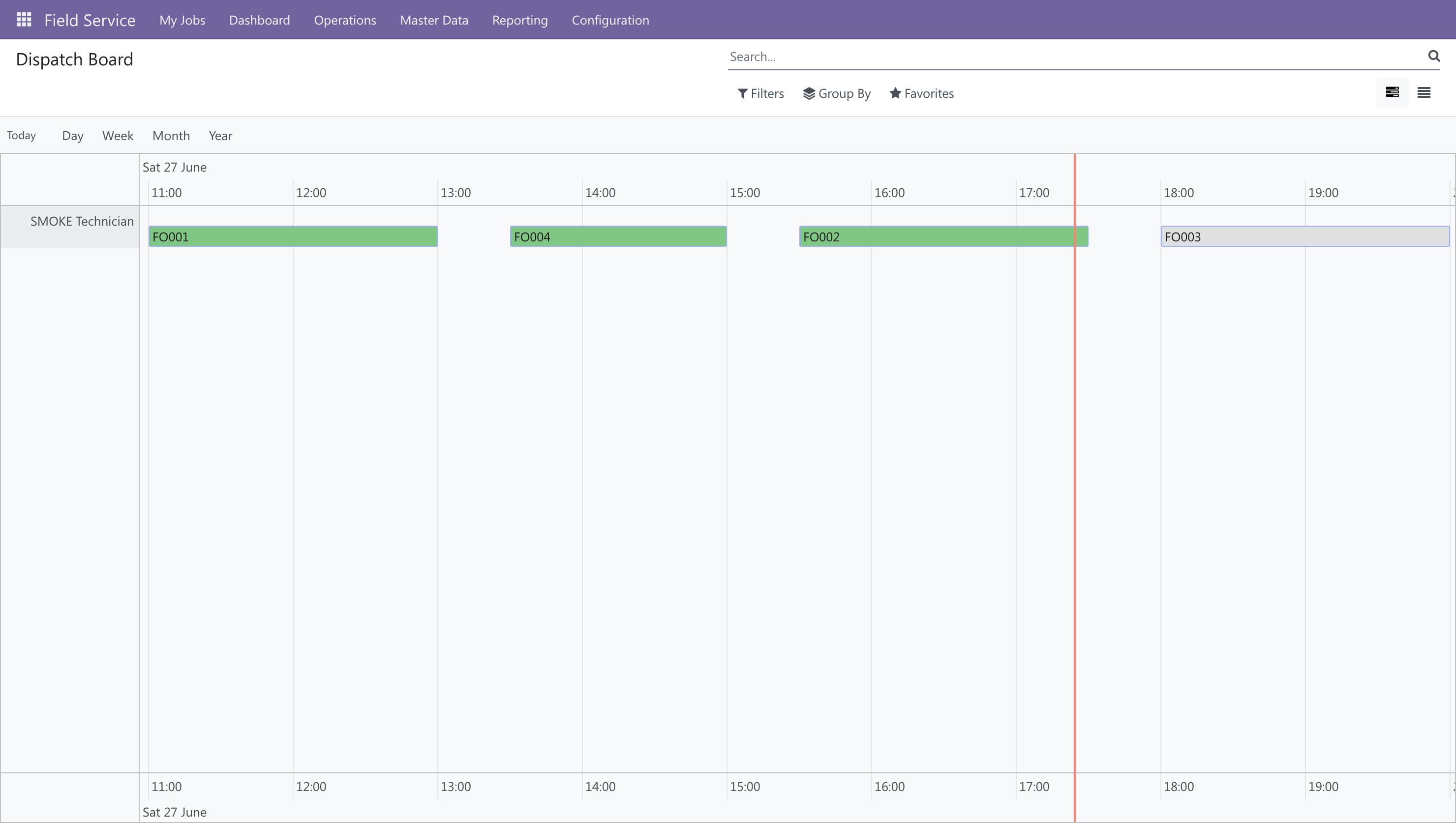
- Drag a bar onto another technician's lane → reassign the job.
- Drag or resize along the time axis → reschedule it.
- Use the Day / Week / Month zoom at the top.
The colour of each bar tells you the stage at a glance — new, assigned, scheduled, en route, in progress, awaiting signature, completed.
When orders appear on the board
An order shows on the board once it has a Scheduled Start. Set one manually, or let Optimize Route (below) compute and write it for you.
Day routes and route optimisation
Field Service ▸ Operations ▸ Day Routes — a day route is one technician's stops for a single day.
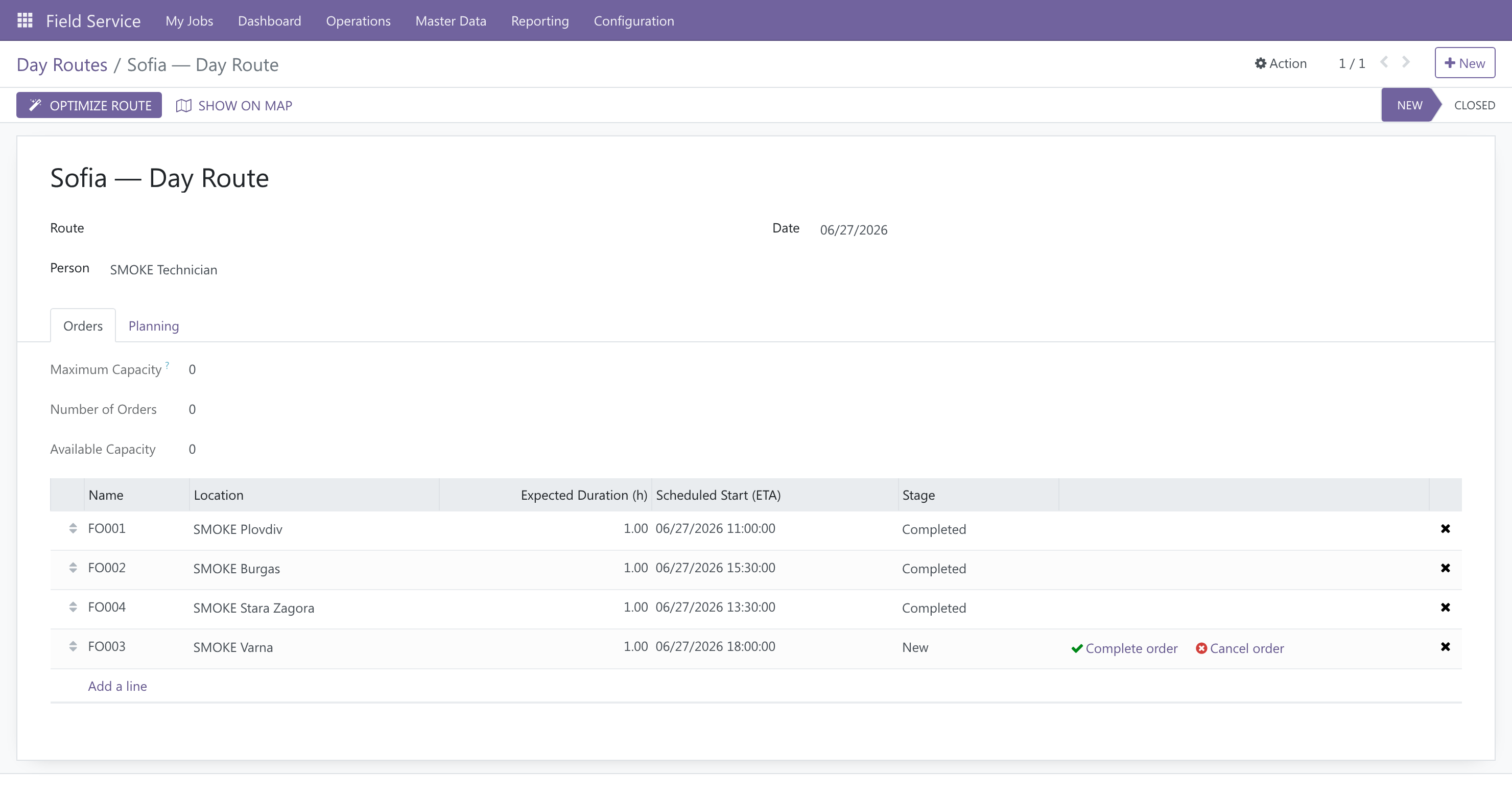
- Open or create a day route, set the Technician and Date, and add the Orders (optionally a Start/End Location — the depot).
- Make sure each order's location is geolocated (Service Location ▸ Geolocate).
- Click Optimize Route.
The routing engine computes the best stop order:
- OSRM provides real road travel times between every pair of stops.
- VROOM solves the vehicle-routing problem, using each job's expected duration (learned from the history of similar completed orders) and any time windows.
- The optimised sequence and ETAs are written back onto the orders.
The engine is self-hosted
The OSRM and VROOM services run inside the PLANA cluster — no third-party routing API, no per-request fees, and your addresses never leave the platform.
The route map
On the day route, click Show on Map:
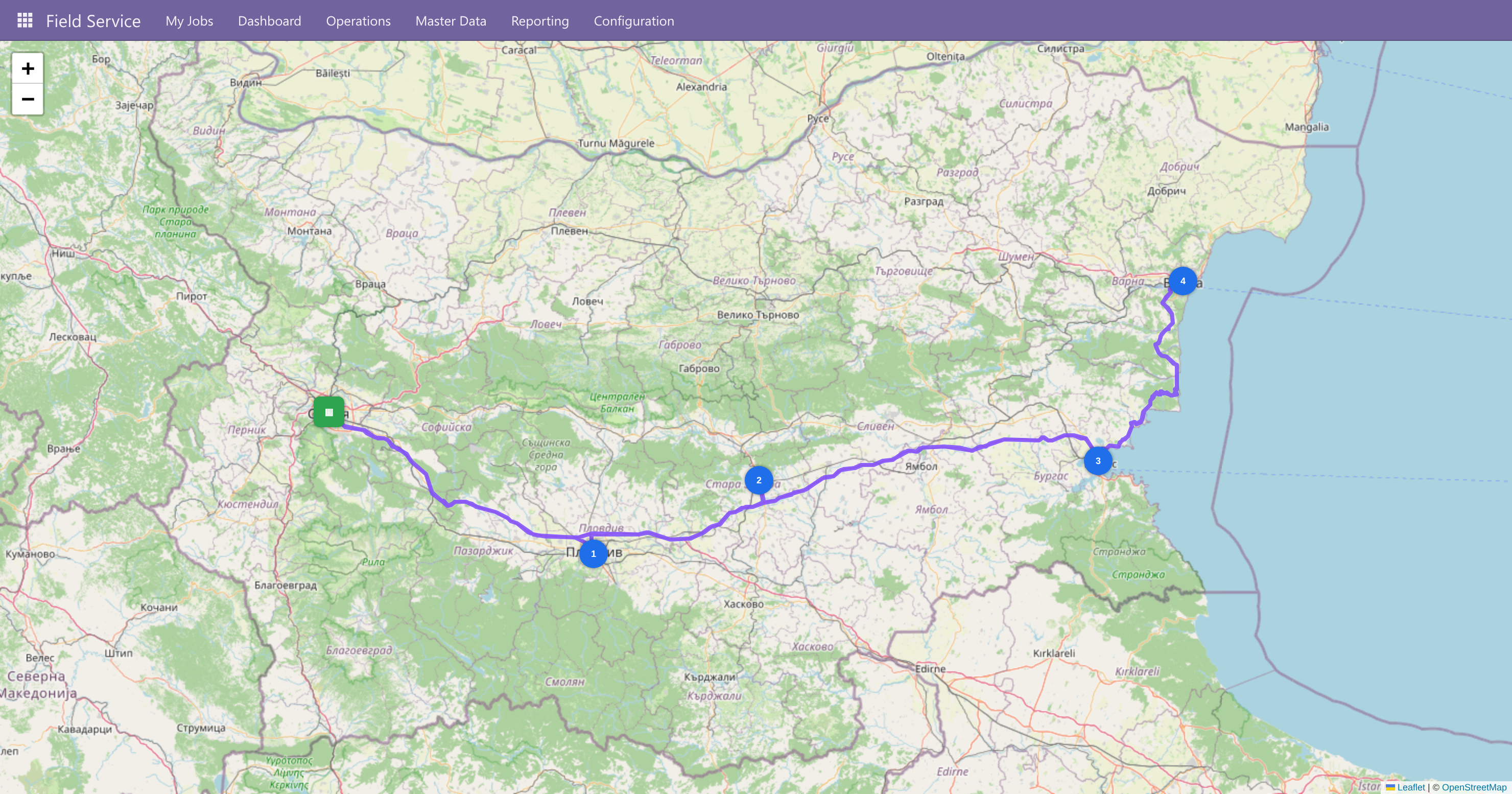
- Numbered markers for each stop in optimised order, a depot marker, and the real road route drawn from OSRM.
- Click a marker → a popup with the ETA and a ▶ Navigate link that opens the phone's map app with turn-by-turn directions.
Each individual order also has a Navigate button for one-tap directions to that site.
Next: hand the job to the technician on their phone — see The mobile job →.