
4 · Sign-off & the handover protocol
When the work is done, the technician closes the job out in one flow: the customer signs on the screen, the parts are consumed, the order completes, and a PDF handover protocol is generated and e-mailed.
Capture the signature
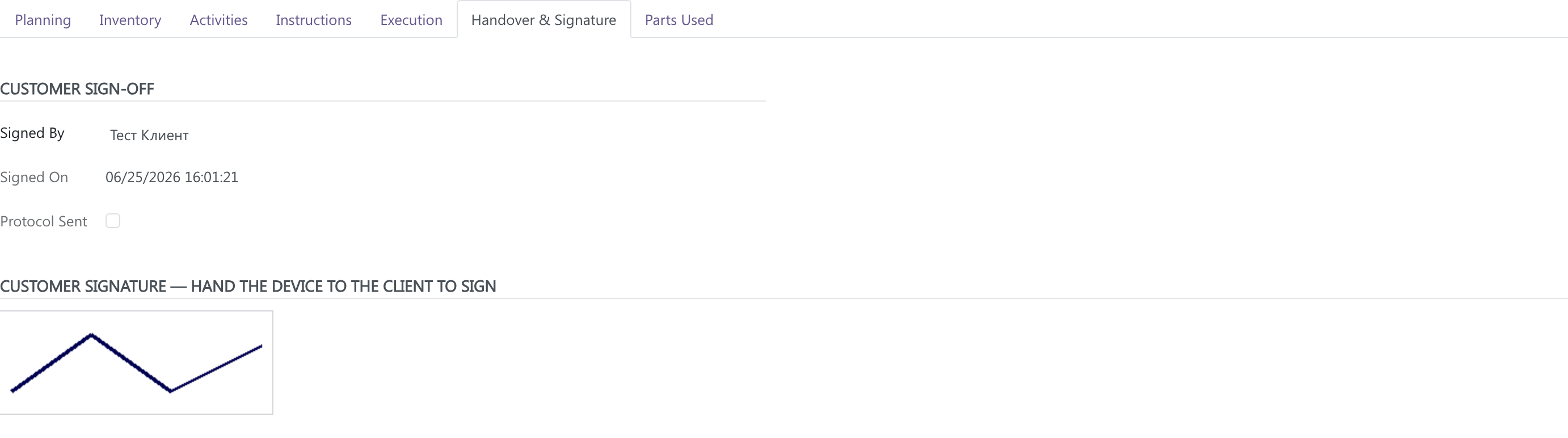
On the order, open the Handover & Signature tab. Hand the phone to the customer — they sign on the signature pad with a finger or stylus; confirm the Signed By name.
Finalise & send the protocol
Tap Finalize & Send Protocol (header) or Sign & Finish (mobile). In one step:
- any pending van parts are consumed (so they are billed and shown on the protocol),
- the order is auto-completed,
- a PDF handover protocol (Сервизен протокол) is generated with the signature embedded, attached to the order, and e-mailed to the customer,
- if the order was auto-invoiced, the invoice PDF is attached to the same e-mail.
No e-mail on file?
If the customer has no e-mail address, the protocol is still generated and attached to the order — you simply get a “no e-mail on file” notice instead of “emailed”.
The protocol includes the customer and technician details, the equipment, the work performed, the parts used, the times, and the embedded customer signature.
Van stock — parts consumed on site
Each technician has a Van Stock location — their vehicle's inventory. On the order's Parts Used tab:
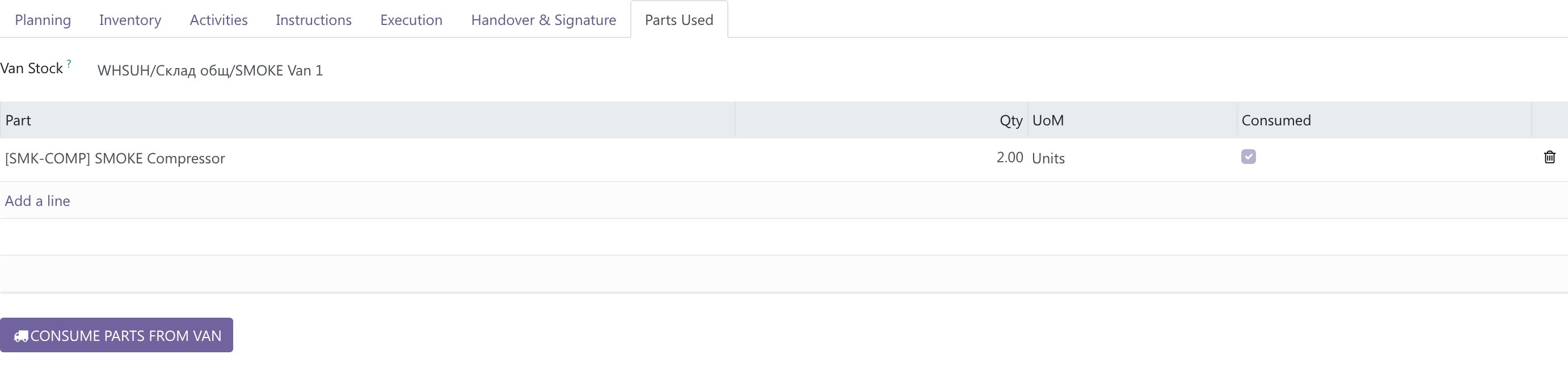
- Add the parts used (product + quantity). The Van Stock defaults to the assigned technician's van.
- Either tap Consume Parts from Van explicitly, or just Sign & Finish — the parts are consumed automatically at sign-off.
Consuming delivers the parts out of the van to the customer location as a real stock move, which decrements the van's inventory and feeds both the invoice and the handover protocol parts table.
Replenishing vans
Top vans back up with normal internal transfers (office → van location). Because the van is a real stock location, its on-hand quantity is always accurate.
Next: turning the completed job into an invoice — see Invoicing →.