
1. Create your account
Everything in this guide happens in the PLANA Connect portal — there is nothing to install. First, create your account and secure it.
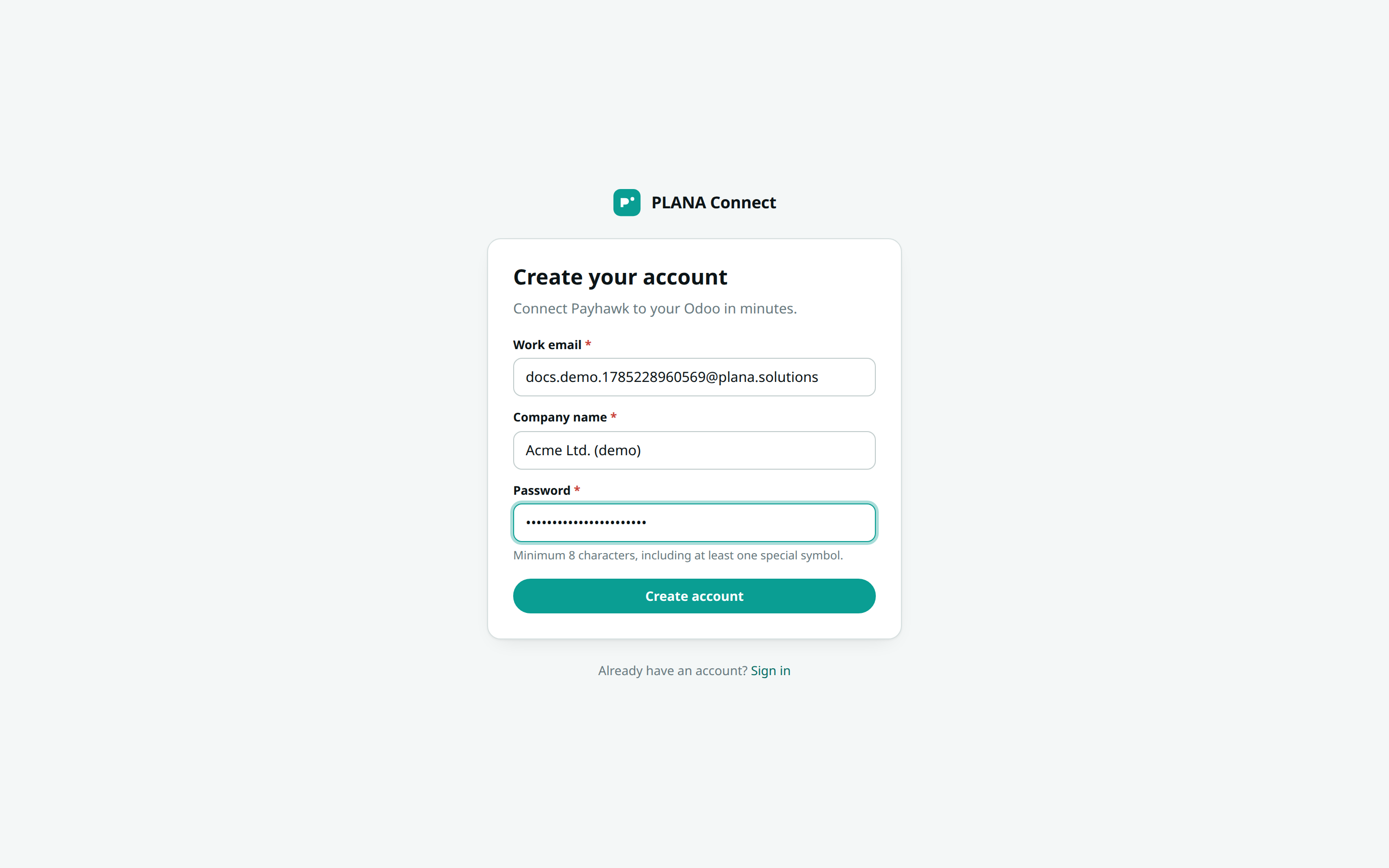
Sign up
- Go to connect.planapulse.com/register.
- Enter your work email and choose a password.
- Submit the form — we send a verification email to that address.
Verify your email
Open the message from PLANA Connect and click the verification link. This confirms the address and activates your account. Then return to the portal and log in with your email and password.
Can't find the email?
Check your spam folder. The link expires after a while — if it has, just sign in and request a new one from the prompt.
Set up two-factor authentication
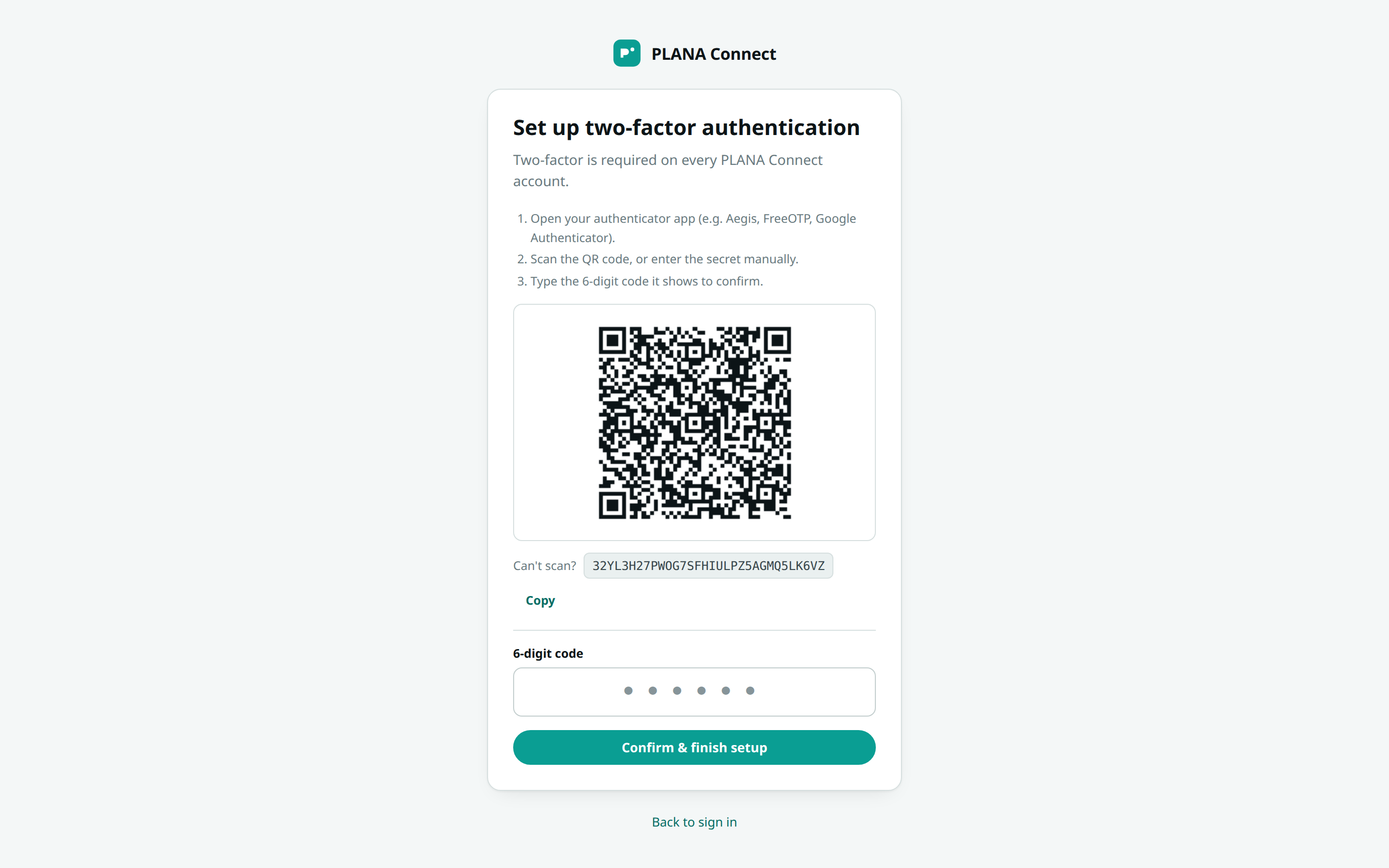
Two-factor authentication (2FA) is mandatory on PLANA Connect — you'll be asked to set it up the first time you log in.
- Open an authenticator app on your phone (Google Authenticator, Microsoft Authenticator, 1Password, Authy, etc.).
- Scan the QR code shown on screen, or type in the setup key manually.
- Enter the 6-digit code from your app to confirm, and save.
Keep your authenticator safe
You'll need a fresh 6-digit code every time you log in. If you lose access to your authenticator, contact PLANA support to recover your account.
Forgot your password?
Use the "Forgot password" link on the login screen at any time to reset it by email.
You're in
After 2FA, you land on the Dashboard. It's empty for now — that's expected. Once you connect Payhawk and Odoo, this is where your companies and sync activity appear. A company selector will appear in the top bar as soon as you have one.