
3. Connect Odoo
This is the second of your two systems. As with Payhawk, you connect Odoo by pasting a credential — no module is installed and any Odoo version works. There is a little groundwork to do inside Odoo first, because the API cannot create these things for you.
Prepare in Odoo
Do these three things in your Odoo before you open the portal:
- Create an integration user — a dedicated user, not a person's login, with Accountant access. This keeps the sync separate from real employees and makes its actions easy to audit. Also tick Extra Rights → Contact Creation: the sync creates a vendor record the first time an expense arrives from a supplier Odoo does not know yet, and without this permission those expenses cannot import.
- Generate an API key for that user, under Preferences → Account Security → New API Key. Copy the key immediately — Odoo shows it only once. Leave the expiry empty. The key is used on every synchronisation, so an expiring key stops the integration the day it lapses.
- Make sure Odoo is reachable over HTTPS from the internet, so PLANA Connect can reach it.
Why an API key and not the password?
PLANA enforces two-factor authentication, which blocks plain password logins over the API. The API key is what you use instead of a password — it belongs to the integration user and can be revoked at any time without touching anyone's login.
Connect it in the portal
Go to Connectors → Odoo → Connect. Work through the wizard and, on Enter your credentials, fill in:
| Field | What to enter |
|---|---|
| Connection name | Any label you'll recognise, e.g. Acme production |
| Odoo URL | Your Odoo address, e.g. https://erp.example.com |
| Database | The exact Odoo database name |
| Login (email) | The integration user's email |
| API key | The key you generated above |
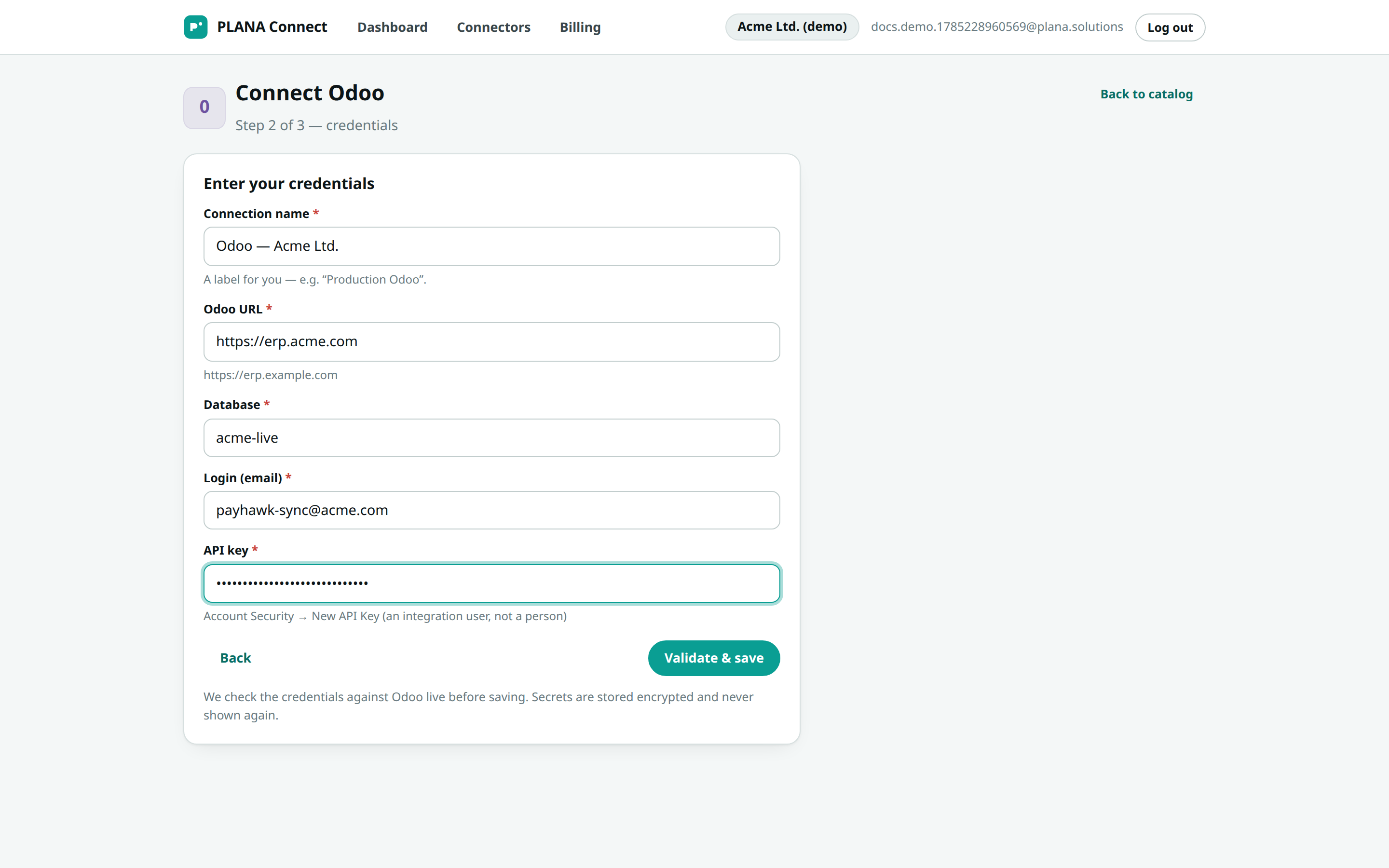
Click verify. PLANA Connect tests the connection and stores the credentials securely, then shows a Connected confirmation.
Two things that trip people up
- HTTPS reachability — Odoo must answer on a public HTTPS address. A private, VPN-only or
http://address will fail verification. Test the URL in a browser first. - The Database field must be the exact database name — not the URL, not the company name. If you have several databases behind one address, the wrong name silently connects to nothing. Check it in Odoo under Settings → Activate developer mode, or ask whoever manages your Odoo.
With both systems connected, you can pair them into a company.