
6. First sync & results
Your company is configured, so let's run it. This step confirms both connections are healthy, triggers your first sync, and shows you exactly what lands in Odoo.
Run the health check
On your company's page, click Health check. It validates both connections in one go — that Payhawk accepts your API key and that Odoo answers over HTTPS with the API key you provided — and reports each side green or red.
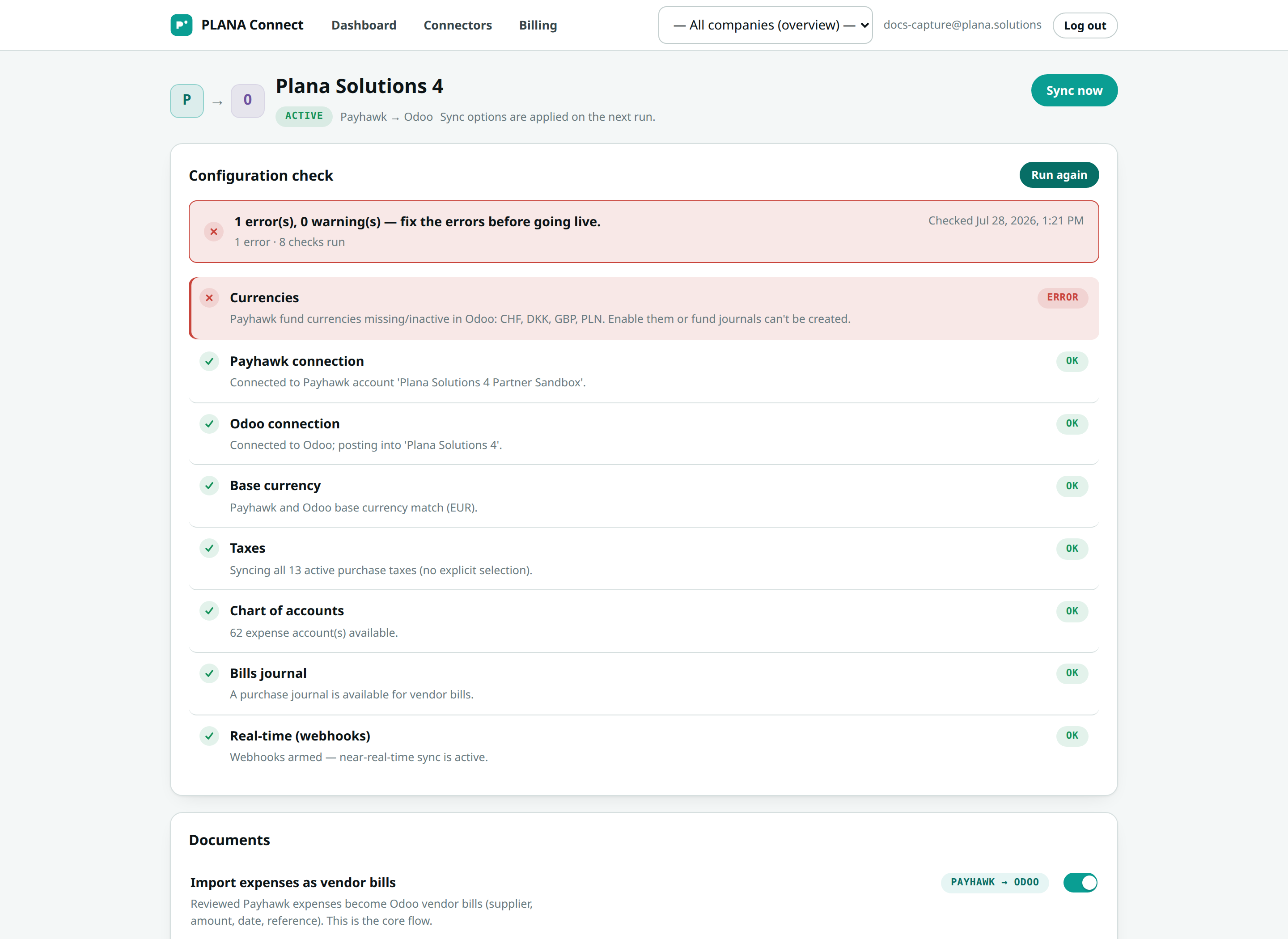
A red result
A red side means we could not reach or authenticate that system. The fix is almost always one of two things:
- Credentials — the API key was revoked, mistyped, or (for Odoo) belongs to a user without Accountant access. Re-check the key on the failing connection.
- HTTPS reachability — Odoo must be reachable from the internet over HTTPS. A self-signed certificate or a firewall that blocks us will show red.
Fix the connection, then run the health check again. Both sides must be green before you sync.
Run sync now
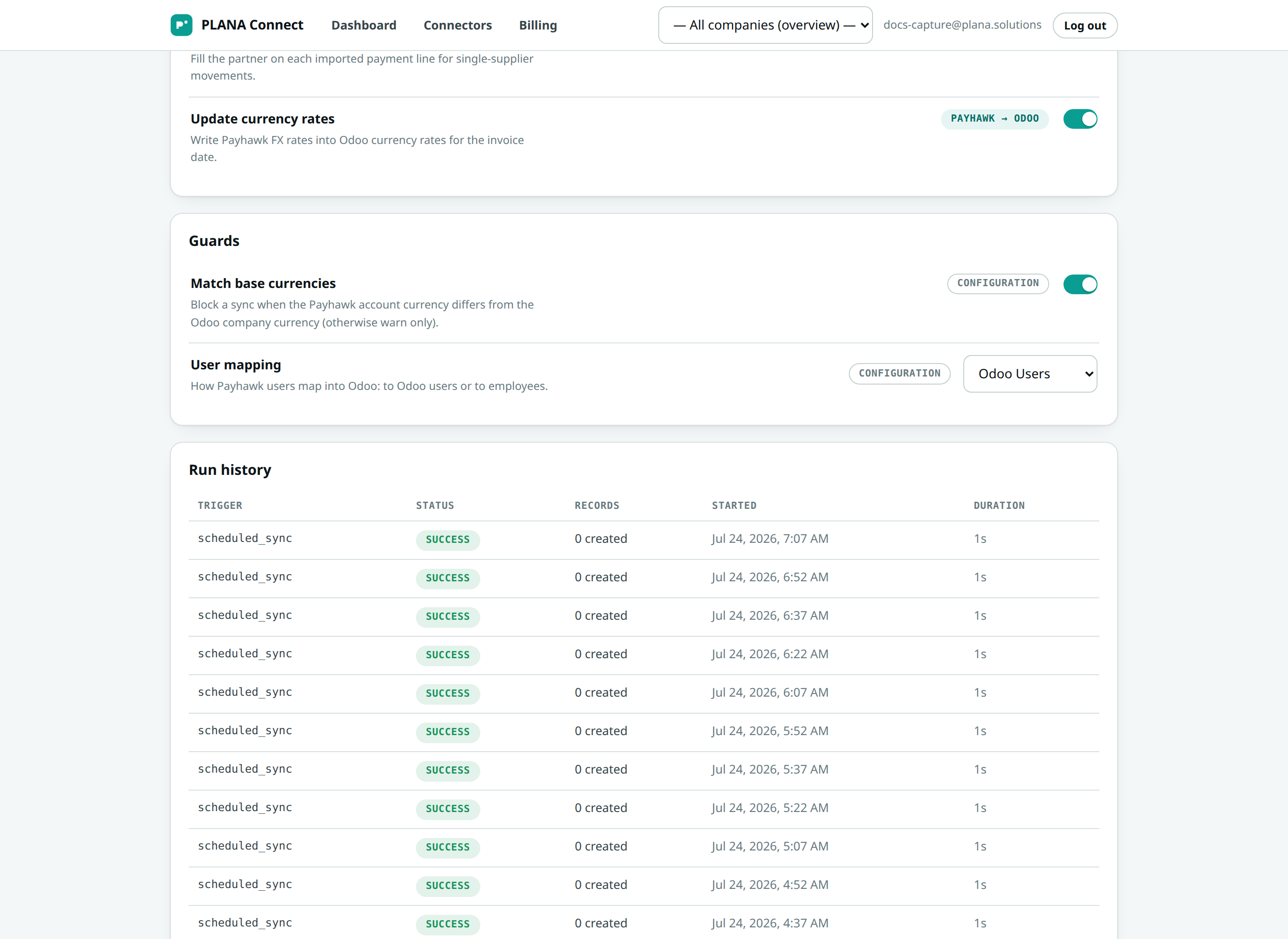
With both sides green, click Run sync now. A live log opens and fills in as records are processed — each line shows what happened: created, updated, or skipped.
Only reviewed expenses import
PLANA Connect imports expenses that are reviewed / "ready" in Payhawk. Anything still in draft in Payhawk is deliberately skipped — it is not finished, so it does not belong in your books yet. It will import automatically once it is reviewed.
What appears in Odoo
| In Payhawk | In Odoo |
|---|---|
| A reviewed expense | A vendor bill with per-line tax and the receipt attached |
| A split expense | One bill line per item on a single bill |
| A settled card or reimbursement payment | A bank movement in a dedicated Payhawk journal |
Bills post automatically (auto-post is on by default) — with one deliberate exception.
Nothing wrong is ever posted
If an expense line's tax could not be matched to an Odoo purchase tax, that line is left untaxed and the whole bill stays a draft with a warning instead of posting. Review it, set the right tax, and post it yourself. Everything else posts on its own.
Open Odoo and you should see your bills under Accounting → Vendors → Bills, and the new movements in the Payhawk journal — the same numbers your reviewers saw in Payhawk.
Next → 7. Real-time webhooks